 Clipsa
Free and open source · macOS, Windows, Linux
The private clipboard manager
Clipsa remembers what you copy so you can find it and paste it again from the keyboard. Your history stays on your device, every item is encrypted, and nothing is sent anywhere.
MIT licensed. No account, no telemetry. Or install with Homebrew: brew install --cask mordamax/tap/clipsa

Your clipboard is private. Clipsa keeps it that way.
You copy passwords, addresses, messages and work you have not shared yet. A clipboard manager stores all of it, so it should be built like a vault, not like a cloud service.
-
Stays on your device
History lives in a local database on your computer. There is no account and no server, so there is nothing to sign in to and nothing to upload.
-
Every item encrypted
Each item is encrypted individually with AES-256-GCM before it is written to disk. The key is kept in your OS keychain, not next to the data.
-
Password copies skipped
Copies that password managers mark as concealed or transient are never recorded (macOS and Windows). You can also exclude whole apps.
-
No network by default
Clipsa makes no network requests unless you opt in to update checks. There is no telemetry, analytics or crash reporting.
-
Deleted means overwritten
The database runs with secure delete, so removed items are overwritten in the file instead of lingering in free space.
-
Open source
All of the code is on GitHub under the MIT license, and the security model is documented, including its limits.
What Clipsa does not protect against. Item contents are encrypted, but metadata such as content type, size and timestamps, and your settings, are not. Clipsa protects history at rest, for example a copied or backed-up database file. It is not a sandbox against malware: code running as your user while you are logged in can read the clipboard directly.
Everything you copied, one shortcut away
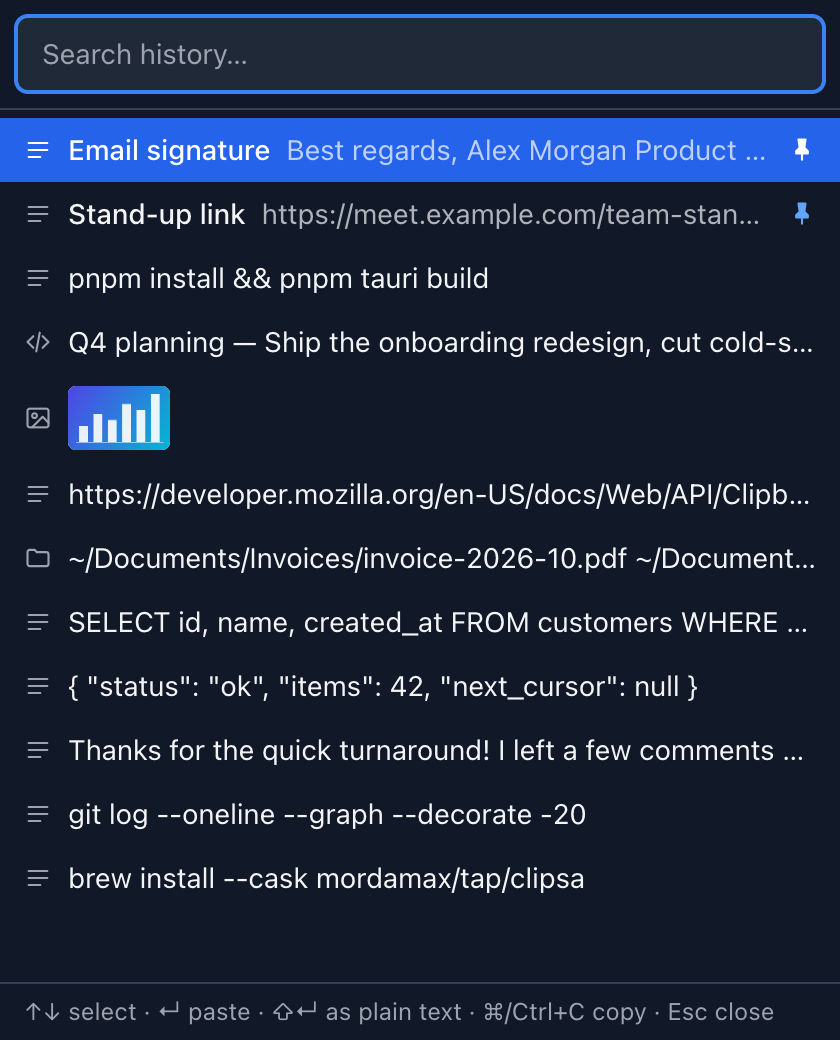
Press Cmd/Ctrl + Shift + V in any app. The quick picker opens, you type a few letters, and Enter pastes the item straight into the app you were using.
- Pinned items and snippets come first.
- Shift + Enter pastes as plain text.
- The hotkey is configurable, or you can turn it off.
-
Quick picker with hotkey
A keyboard-driven picker opened by a global hotkey. Filter as you type, move with the arrow keys and paste with Enter.
-
Paste as plain text
Strip formatting with Shift + Enter in the picker, or make plain text the default in Settings.
-
Pinned items and snippets
Pin anything to keep it forever. Pinned items are exempt from retention and "Clear all". Give them a name or write reusable text snippets.
-
App lock
Require Touch ID or your login password (macOS) or Windows Hello to see history after Clipsa has been in the background for a time you choose. Capture keeps running while locked.
-
Text, rich text, images, files
Rich text keeps its HTML and plain-text versions, images are stored as PNG and file copies as their paths. Copying an item again restores its original format.
-
Search and filter
Search the text and titles of your history and filter by content type.
-
Retention limits
Set a maximum number of items and delete items automatically after a number of days. Limits are applied after every capture and once an hour.
-
Per-app exclusions
Never record copies made while a given app is in front: by bundle id on macOS (e.g.
com.agilebits.onepassword7) or exe name on Windows (e.g.keepass.exe).
Also: a tray icon with Open, Pause/Resume monitoring and Quit; optional launch at login; light, dark and system themes; and a compact mode.
Keyboard shortcuts
Clipsa is built to be used without the mouse.
| Where | Key | Action |
|---|---|---|
| Anywhere | Cmd/Ctrl + Shift + VConfigurable; leave empty to disable | Open the quick picker |
| Picker | Type | Filter history |
| Picker | ↑ / ↓ | Move the selection |
| Picker | Enter | Paste the selected item into the previously focused app |
| Picker | Shift + Enter | Paste the opposite way: plain text if the default keeps formatting, and vice versa |
| Picker | Cmd/Ctrl + C or click | Copy the item without pasting |
| Picker | Esc | Close the picker |
Platform support
Clipsa runs on all three desktop systems, but each one exposes different clipboard details. Here is exactly what works where.
| Capability | macOS | Windows | Linux |
|---|---|---|---|
| Text, rich text, images and files | Yes | Yes | Yes |
| Skip password-manager copies | Yes | Yes | Not available |
| Per-app exclusion | Yesby bundle id | Yesby exe name | Not available |
| Paste into the previous app | Yesneeds Accessibility permission | Yes | Yes on X11Wayland compositors may block simulated keystrokes |
| App lock | YesTouch ID or login password | YesWindows Hello (must be set up) | Not available |
| Master key storage | Keychain | Credential Manager | Secret Service (GNOME Keyring, KWallet, …) |
| Downloads | .dmg (Apple Silicon and Intel) |
.msi, .exe installer |
.AppImage, .deb, .rpm |
Linux limits. On Linux, Clipsa cannot tell which app owns a copy and cannot see password-manager markers. Use Pause monitoring in the tray before copying secrets, or delete the item afterwards.
Install Clipsa
Download the installer for your system from the latest GitHub release.
macOS
.dmgfor Apple Silicon or Intel- Or with Homebrew:
brew install --cask mordamax/tap/clipsaWindows
.msior NSIS.exeinstaller- Windows builds are not code-signed yet, so SmartScreen may show a warning.
Linux
.AppImage,.debor.rpm- Needs a Secret Service provider such as GNOME Keyring or KWallet to store the key.
Updates are optional: on the first-run screen you choose whether Clipsa may check GitHub Releases for updates. Updates are verified against a signing key built into the app before they are installed. Prefer to build it yourself? See the development instructions.
Support Clipsa
Clipsa is free and open source: no ads, no account, and every feature is in the free download.
A paid Mac App Store edition is coming for people who prefer installing and updating through the App Store. Buying it is a way to support development; it unlocks nothing extra. Because of App Store rules, that edition copies the item from the quick picker and you press ⌘V yourself, while the free download pastes for you.
You can also support Clipsa through GitHub Sponsors. Starring the repository, reporting bugs and contributing code help too.
Frequently asked questions
Is Clipsa free?
Yes. The download from this site is free and open source under the MIT license, with every feature, no trial and no account. A paid Mac App Store edition is coming as an optional way to support the project; it has the same features, except that App Store rules don't let it paste into other apps for you. You can also support Clipsa on GitHub Sponsors.
Does Clipsa send my data anywhere?
No. Your clipboard history never leaves your computer. Clipsa has no telemetry, analytics or crash reporting.
The only network request Clipsa can make is the update check, and it is off until you opt in on the first-run screen or in Settings. When enabled, Clipsa asks GitHub Releases for the latest version at startup and once a day. See the privacy policy for details.
How is my history encrypted?
Each item's content (text, HTML, image bytes, file paths) is encrypted with AES-256-GCM using a fresh random 96-bit nonce. A random 256-bit master key is generated on first run and stored in your OS keychain. Duplicates are detected with HMAC-SHA256 under a key derived from the master key, so the database holds no plain hash of your content.
If keychain access is denied or fails, Clipsa shows an error and refuses to start. It never silently creates a new key, because that would make your existing history unreadable.
Not encrypted: content type, size, timestamps and settings. Read the full security model.
What about passwords?
On macOS and Windows, Clipsa skips copies that password managers mark as concealed, transient or auto-generated. This is on by default. You can also add apps to the exclusion list so nothing copied while they are in front is recorded.
Linux does not expose these markers or the app that made a copy. There, use Pause monitoring from the tray, or delete the item afterwards.
Why does macOS ask for Accessibility permission?
Pasting into another app means simulating Cmd + V, and macOS only allows that for apps with the Accessibility permission. Clipsa needs it only for pasting from the quick picker; capturing your clipboard does not need it.
You can grant it in System Settings → Privacy & Security → Accessibility, or let Clipsa request it from its Settings. Until then, copy an item from the history window and paste it yourself.
Where is my history stored?
In clipsa/clipboard.db inside your data directory: ~/Library/Application Support on macOS, %APPDATA% on Windows and $XDG_DATA_HOME (or ~/.local/share) on Linux.